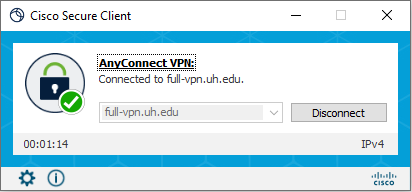
VPN Installation Instructions for Windows
Installing the Cisco Secure VPN Client
Uninstalling the Cisco Secure VPN Client
Connecting to VPN | Disconnect from VPN
Connecting to FULL VPN | Disconnect from FULL VPN
Installing the Cisco Secure VPN Client
-
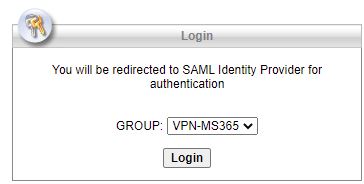
Download the Cisco Secure VPN Client for Windows installer. Make sure to select the group called VPN-MS365 as shown in the screenshot below.
-
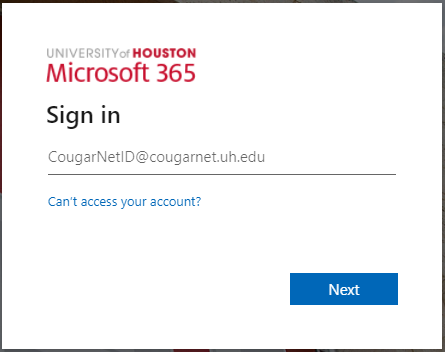
Enter your Microsoft 365 email.
-
Click Next.
-
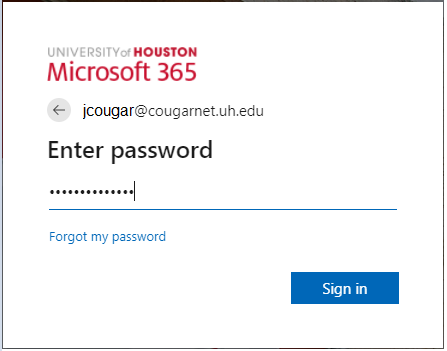
Enter your Microsoft 365 password.
-
Click Sign in.
-
You will be prompted to authenticate through Microsoft Authenticator.
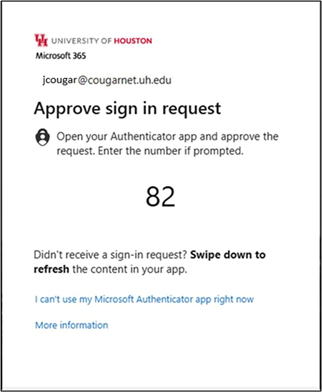
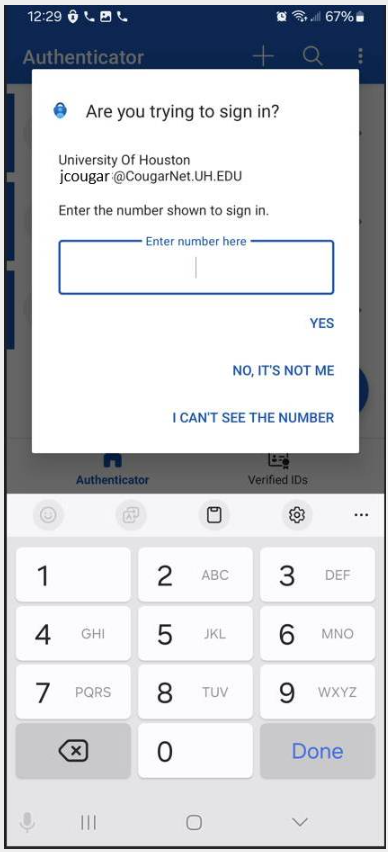
- Enter the two digits from the screen above.
- Tap Done.
-
Select AnyConnect on lower left side of this window.
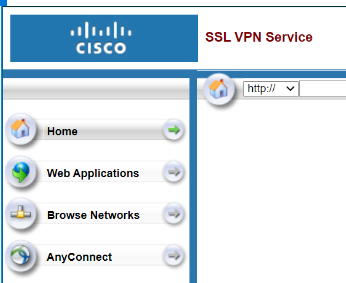
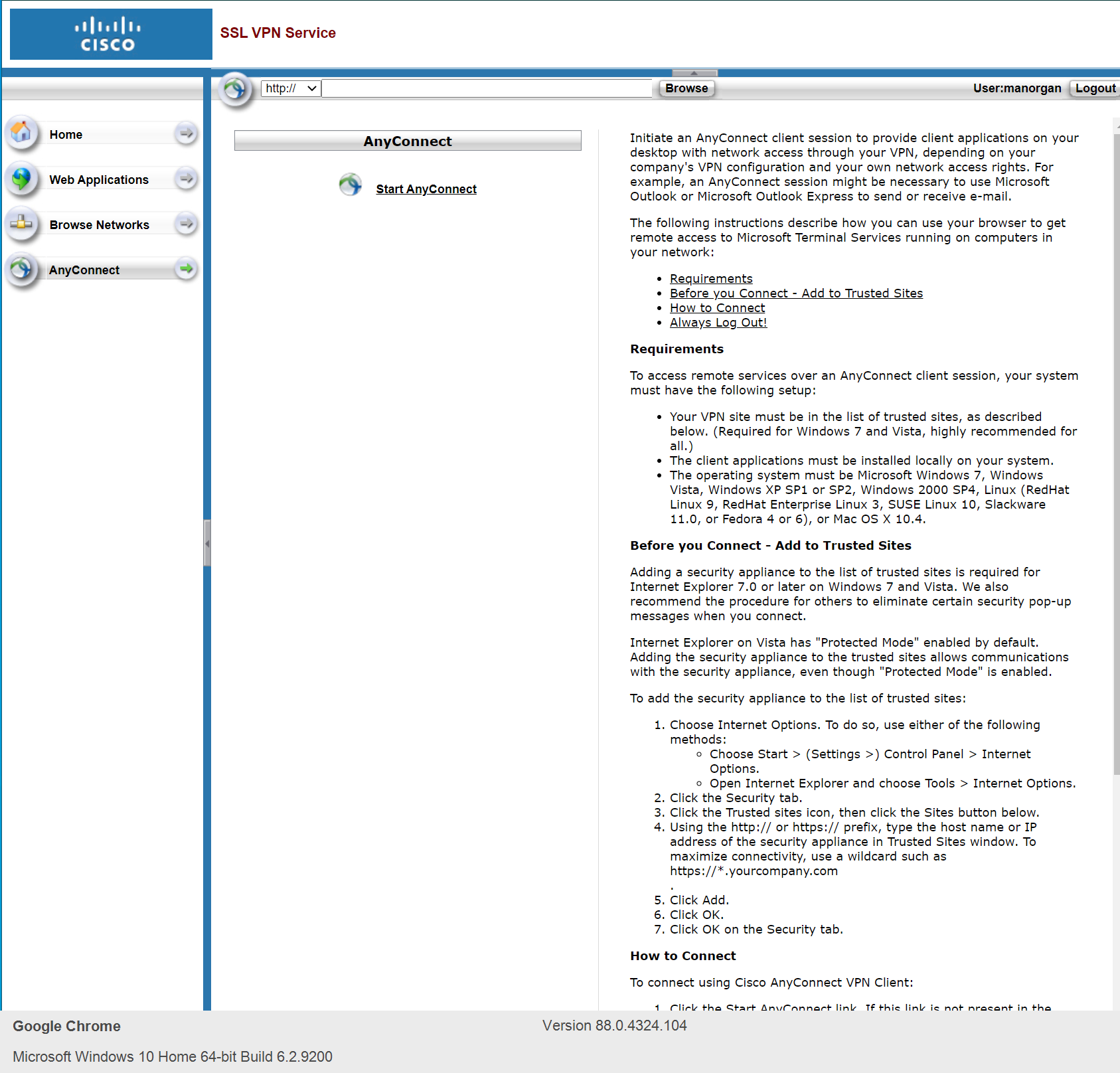
- Click Start AnyConnect.
-
Click Download for Windows.
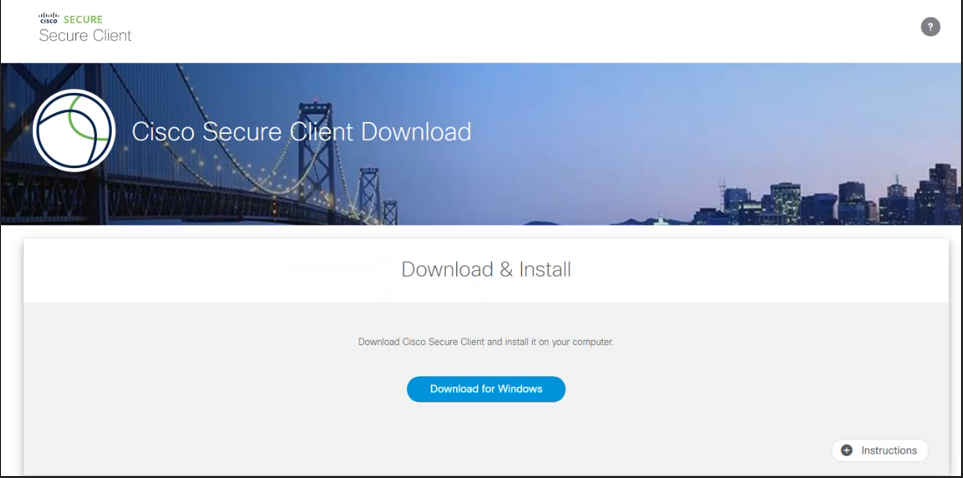
- The download will complete on the lower left hand side of the screen as seen here.
Microsoft Edge: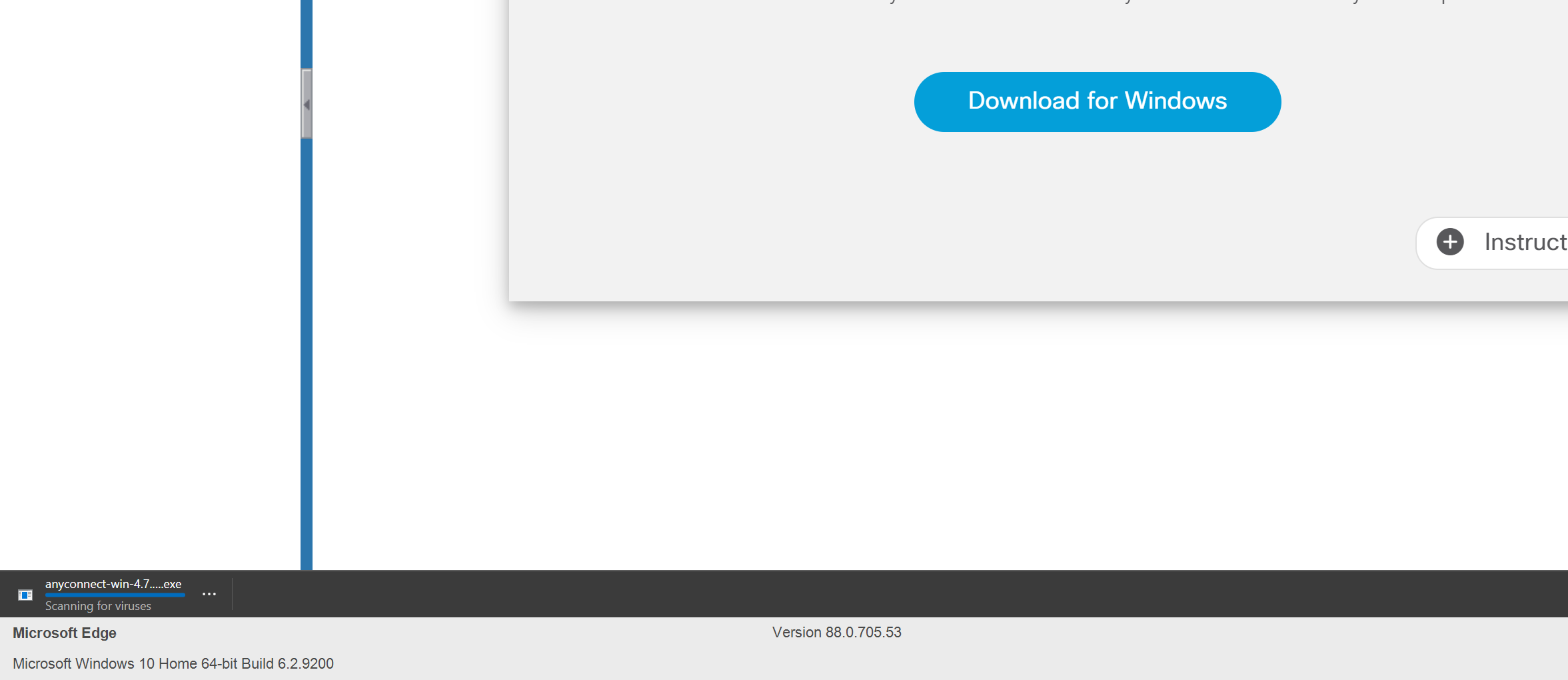
Google Chrome: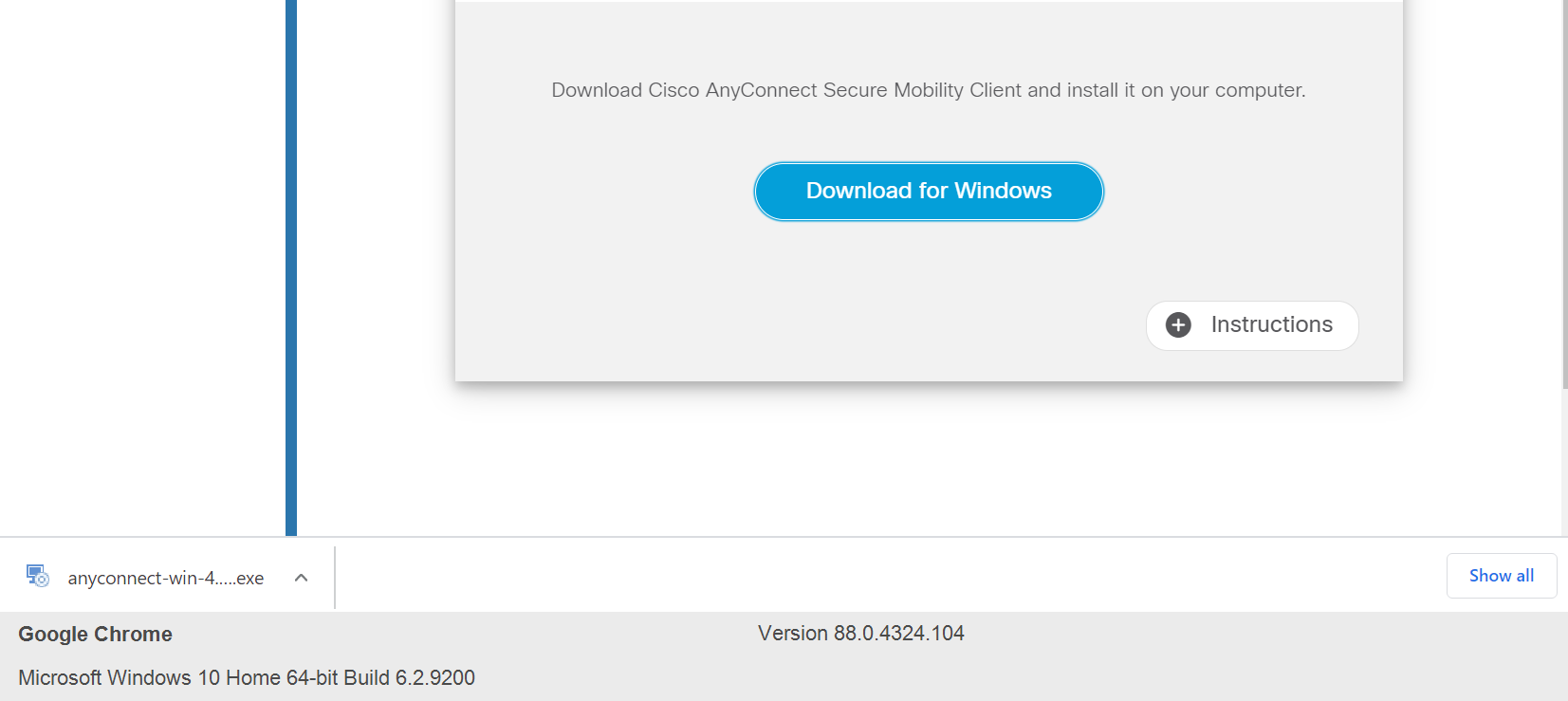
-
Double-click the AnyConnect.exe file. (Note: You may encounter a Security Warning screen and must click Run to proceed.)
-
Click Next.
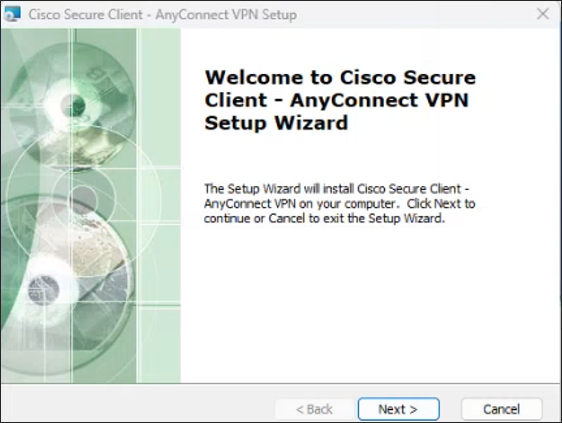
-
Accept the terms for the License Agreement.
-
Click Next.
-
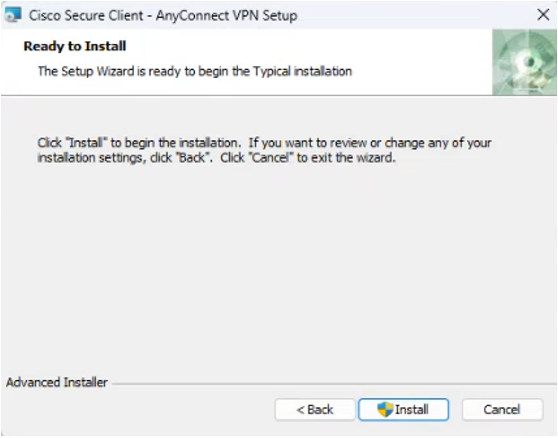
Click Install.
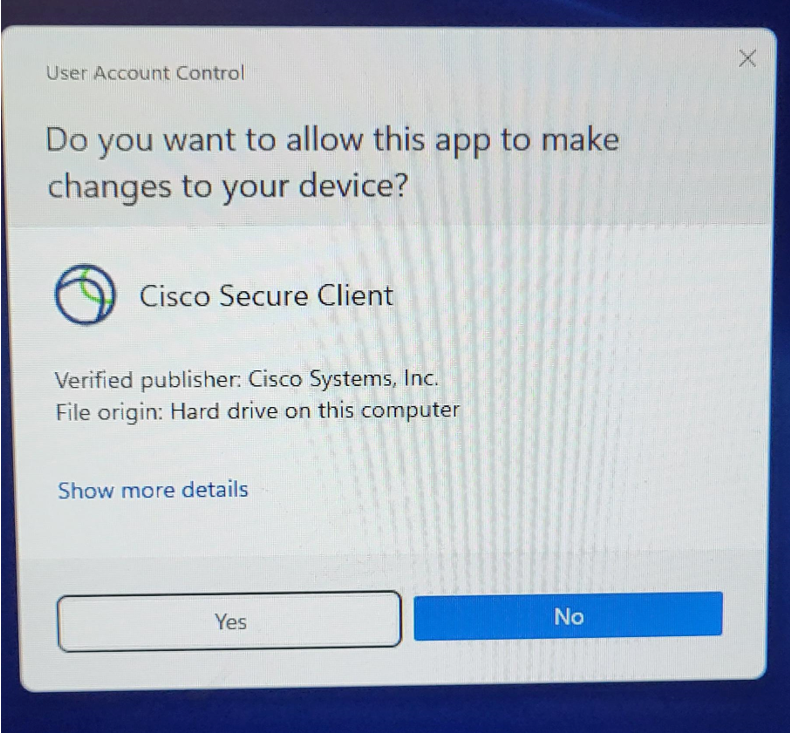
- Allow access from user account control as seen here by clicking Yes.
-
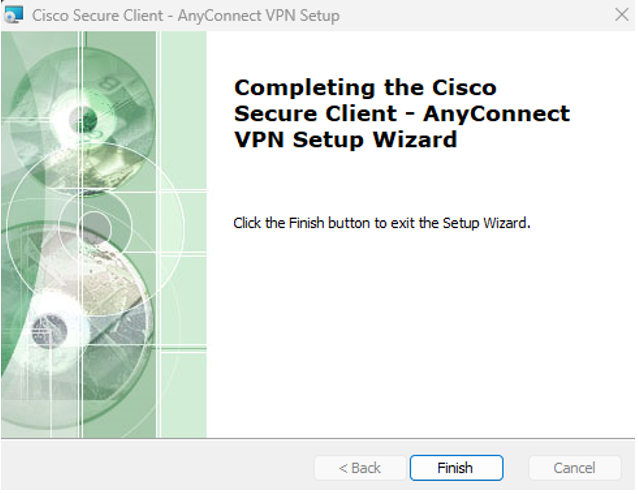
Once the VPN Client is installed and the message below appears, click Finish.
Uninstalling VPN Client - Windows 11
1. Click Search Bar on lower middle of the screen, type uninstall. Double click Add or Remove Programs.

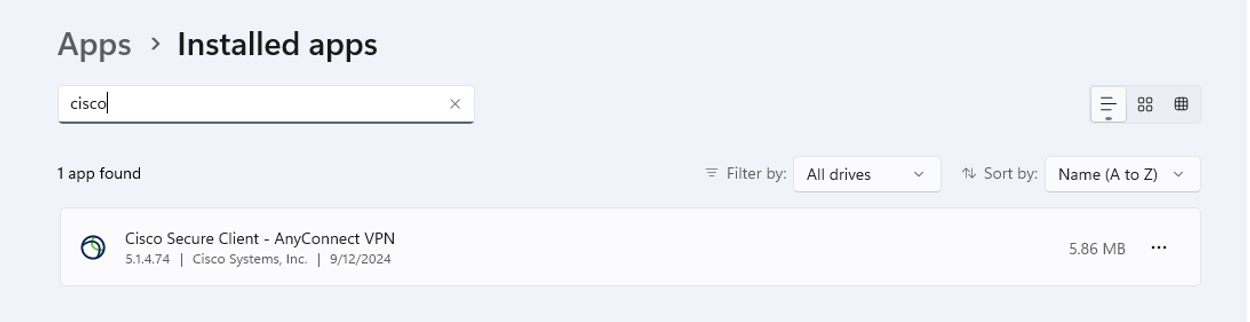
3. Select CISCO Secure Client - AnyConnect VPN, then click uninstall.

4. Click uninstall again.
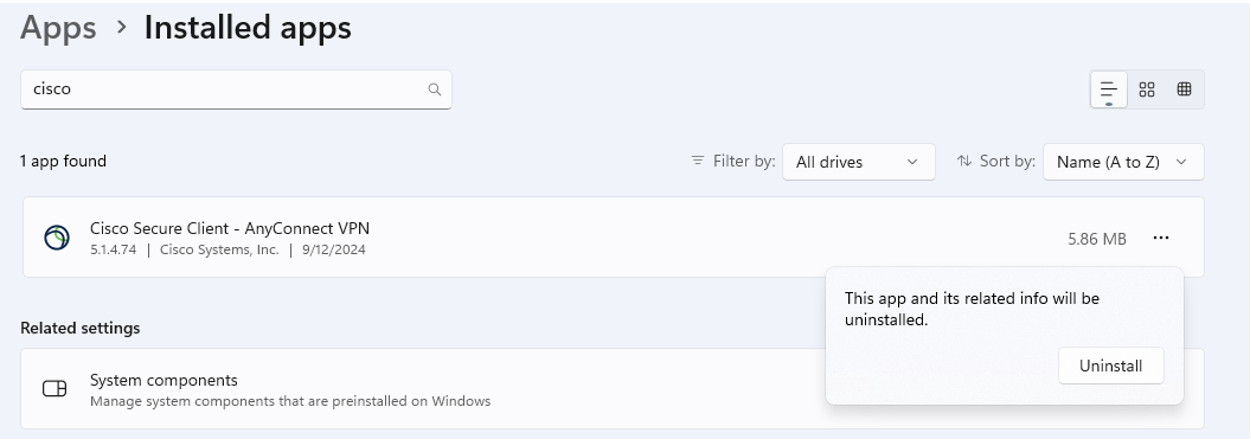
5. Click Yes to uninstall.
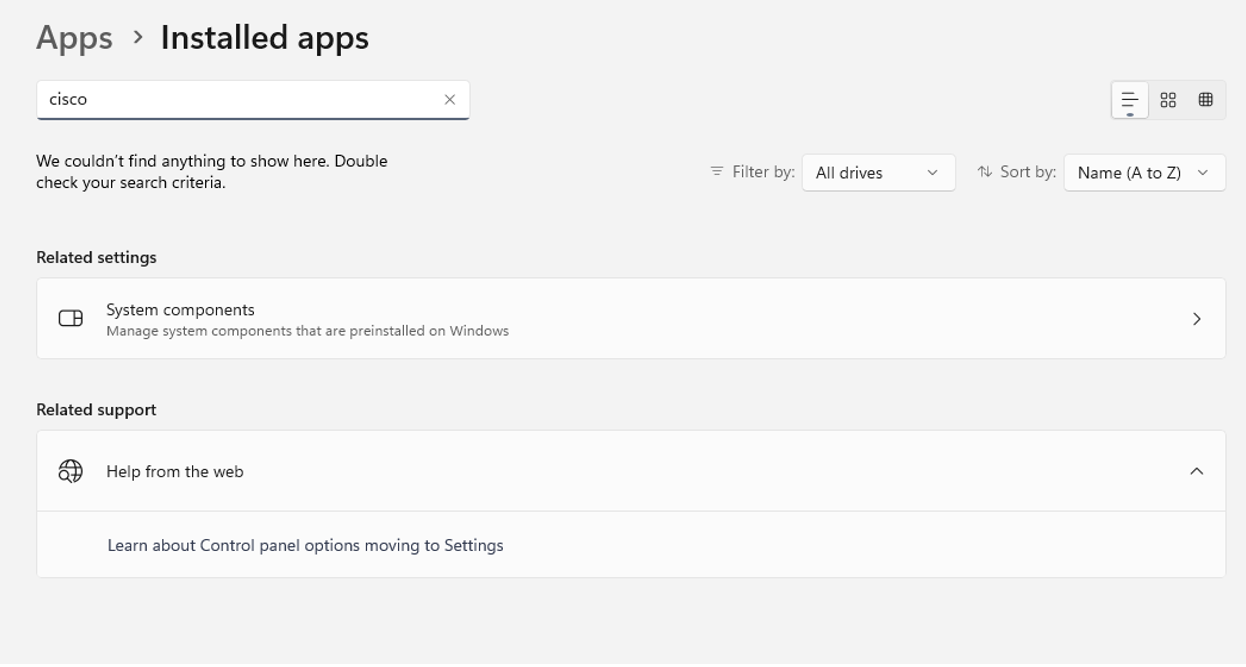
6. The CISCO Secure Client has been removed from your computer.
Connecting to the UH VPN
This is for users that need to access UH secure network resources from off campus. Please make sure to have the Microsoft Authenticator mobile app installed on your device before starting.
- Launch the Cisco Secure Client.
- If you don't see Cisco Secure Client in the list of programs, navigate to Cisco > Cisco Secure Client - AnyConnect VPN.
- Type vpn.uh.edu/VPN-MS365.
- Click Connect.

- Enter your Microsoft 365 email.
- Click Next.
- Enter your Microsoft 365 password.
- Click Sign In.
- You will be prompted to authenticate through Microsoft Authenticator.
- Enter the two digits from the screen above.
- Tap Done.

Disconnect from the UH VPN
-
In the notification area, click the Cisco Secure icon
 if it is displayed. Otherwise, go to your list of programs and click Cisco Secure Client.
 -
At the prompt, click Disconnect.

Connecting to the Full UH VPN
This is for users that need to access web-based journals and databases licensed by UH Libraries. Please make sure to have the Microsoft Authenticator mobile app installed on your device before starting.
- Launch the Cisco Secure Client.
- If you don't see Cisco Secure Client in the list of programs, navigate to Cisco > Cisco Secure Client - AnyConnect VPN.
- Type full-vpn.uh.edu.
- Click Connect.
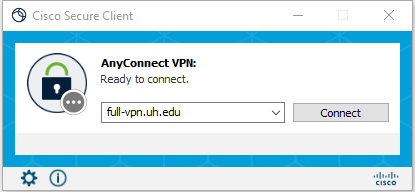
- Enter your Microsoft 365 email.
- Click Next.
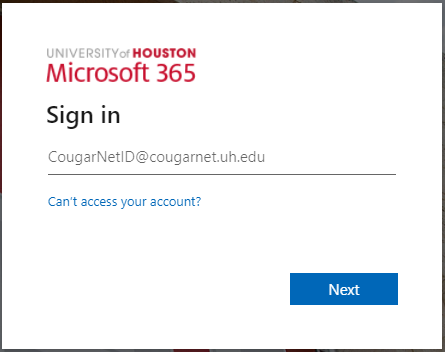
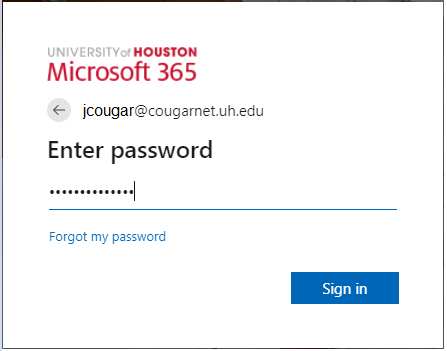
- Enter your Microsoft 365 password.
- Click Sign in.
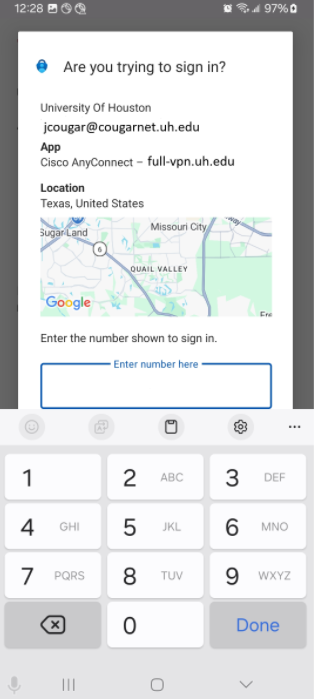
- You will be prompted to authenticate through Microsoft Authenticator.
- Enter the two digits from the screen above.
- Press Done.
Disconnect from the Full UH VPN
-
In the notification area, click the Cisco Secure icon
if it is displayed. Otherwise, go to your list of programs and click Cisco Secure Client. -
At the prompt, click Disconnect.